Quick Summary
Companies without budget for a third-party application can automate their SAP segregation of duties (SOD) review using Microsoft Access and Excel. This article walks through defining critical tasks and conflicts, building a matrix, extracting SAP role data, and analyzing the results to find users with conflicting access.
Are you looking for ways to automate your SAP segregation of duties (SOD) process, but there is no budget for a third-party application? Companies can use their already available Microsoft Office applications to automate their SOD process. The primary applications needed are Microsoft Access (Access) and Microsoft Excel (Excel). The process is not overly complex and you do not need to be an expert in Excel and Access to implement it.
This article focuses on SAP; however, companies can use the same concepts to implement SOD analysis for any application. Companies would need to develop their own SOD ruleset to use in the analysis. After the rule set is established, the process can be re-run periodically, after refreshing the data.
Use the following instructions to implement your own SOD process without an SOD third-party application:
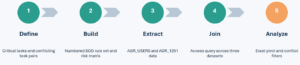
- Define – Document critical tasks within each in-scope process (e.g., create vendor, create purchase order, perform a goods receipt, invoice, payment, etc.).
- Define – Assign a unique number to each critical task. For example, you can assign “01” to create vendor.
- Define – Determine the critical tasks in conflict (e.g., Create Purchase Order vs. Goods Receipt, etc.).
- Define – Assign a unique number to each critical conflict (e.g., SOD.01 Create Purchase Order vs. Goods Receipt). Create an itemized list of conflicts.
- Build – Create a segregation matrix (see Screenshot #1). Each critical conflict in the matrix will have a line for each critical task. You should add the risk information (see Inherent and Residual columns). Also, add a column to number the task and number each control starting at 1 (Risk 2 column below). The Risk 2 column is critical when determining your SOD conflicts.
Screenshot #1

- Build – Map the critical tasks to transactions or privileges (e.g., Create Purchase Order with ME21N).
- Extract – Generate the AGR_USERS and AGR_1251 SAP tables. The AGR_1251 table includes inactive roles, so make sure you filter out the inactive roles. Save the IPE parameters for support.
- Extract – Import AGR_USERS (users to security roles), AGR_1251 (role to privileges) and your SOD matrix into Access. You do not have to be an Access expert to complete this step. To reduce the size of the AGR_1251 table, extract the Object of S_TCODE items to be reduced to only transactions to security roles. Ensure that you are also removing the deleted line items as well. It may take a little practice and YouTube video help if you have not used Microsoft Access recently. Note – You do need to review the SAP_ALL profile and transaction in ranges for a complete review.
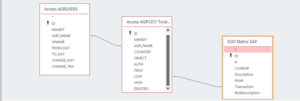
- Join – Use Access to join the three tables together. Navigate to Create – Query Design. Drag in your tables and connect tables based on Screenshot #2 below. Bring in all of the fields from all three tables.
Screenshot #2

- Analyze – The result will be a large table. Then, extract the results table to Excel.
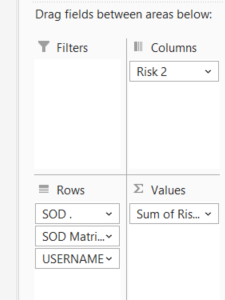
- Analyze – Generate an Excel PivotTable with the following rows:
- SOD
- SOD Matrix
- Username
The column is the Risk 2 field. See Screenshot #3 below.
Screenshot #3

Screenshot #4

- Analyze – Identify users with both functions – users with one or both functions will be identified from the Microsoft Access query. You need to filter out the users with only one function. Perform a series of comparisons to identify the users with both functions. Step 1 – Create a Check1 column and perform a subtraction formula from the Grand Total with Column “1”. Then create a Results1 column and compare if Check1 is equal to the Grand Total. If the numbers match, no additional review is required. Step 2 – Create a Check2 column and perform a subtraction from the Grand Total with Column “2”. Then create a Results2 column and compare if Check2 is equal to the Grand Total. If the numbers match, no additional review is required. For the final users to review, filter out both Results column when the result is equal to “No review”. See Screenshot #4.


Note – Schneider Downs would still recommend using a third-party SOD application to provide additional integrity of the review.
Schneider Downs’ IT Risk Advisory professionals collaborate across every layer of your organization to identify technology risk and drive solutions that add value with minimal disruption. Whether you’re building an in-house SOD review or evaluating a third-party application, we can help you understand the multiple layers of technology supporting your business — and the people who run them. To learn more, visit our IT Risk Advisory page or contact us, or email us directly.